
Instructional videos
See Dioptra in Action
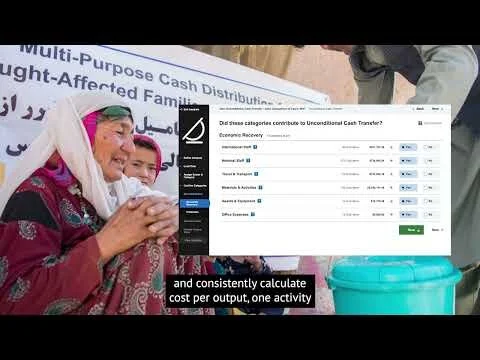
As someone who is cognizant of the on-ground realities of humanitarian aid, relief, and development activities, you’re also aware of how the lack of evidence in this sector makes it difficult to prioritize activities and implementation approaches that can provide the most ‘value for money’ by providing more impact for more people in need within limited funds.
In response to these gaps, Dioptra is an online tool that can be used for rapid, rigorous, and consistent cost-efficiency analysis, in order to generate evidence-based strategies to reach more people and have greater impact, even within limited resources. It guides program staff at humanitarian and development organizations through a step-by-step process using a standardized methodology for estimating cost-per-output of program interventions.
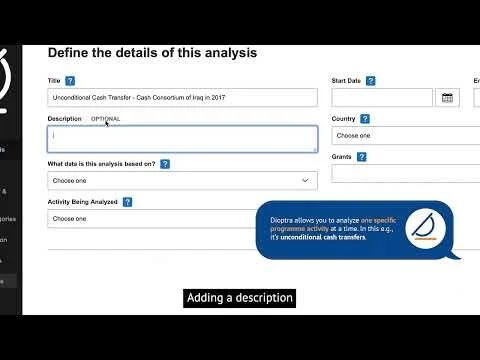
In this initial step, we will define the scope of our analysis, by giving it a title and description, specifying the type of data the analysis is based on, choosing the specific activity being analyzed, selecting the implementation period of said activity, indicating the country where the activity was implemented, and entering the project code(s) that funded the activity.
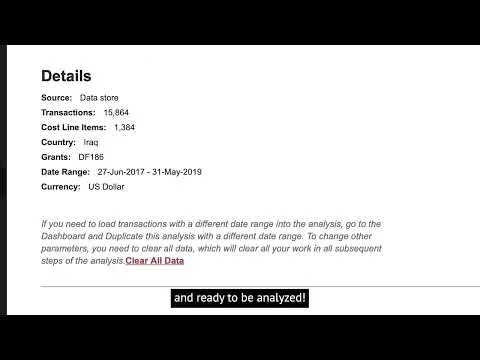
In this step, we will see how Dioptra can pull existing transactions from your organization's financial database, or allow you to upload a spreadsheet with budget line information if expense data is not available (because the program is still in the proposal phase).
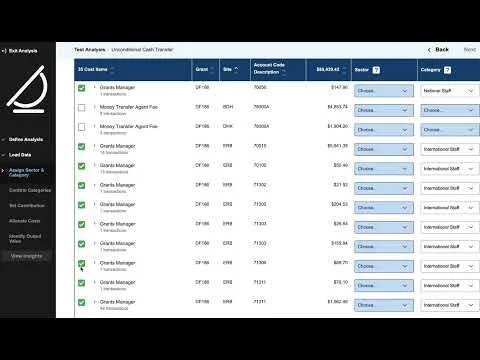
In this step, Dioptra automatically groups the data that it pulls from your finance system or budget spreadsheet into different Sectors and Categories, based on finance codes. Some of this information may not be available from finance codes alone, so you will need to exercise your judgment to manually assign the relevant Sector and/or Category to each cost item.
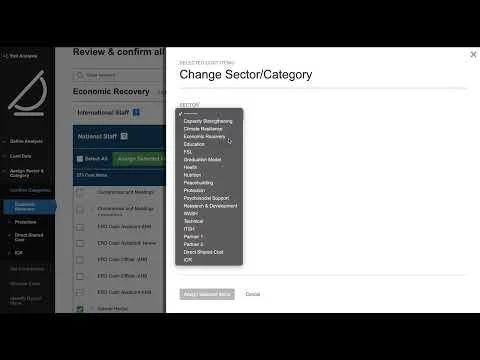
In this step, all cost items belonging to the same Sector, Direct Shared Costs, or ICR, are automatically grouped on the same page. Within each Sector page, cost items are further grouped into Categories. Because there can be coding errors in financial data, Dioptra asks you to review that all cost items have been assigned to the correct categories.
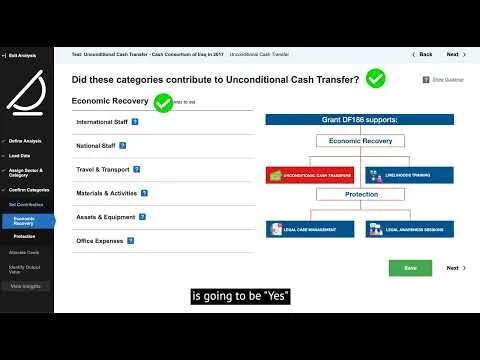
In this step, i.e. Set Contribution, Dioptra allows you to select only the relevant Sectors and Categories that contributed to the intervention being analyzed. If a particular category is relevant and contributed to the intervention, you will select ‘Yes’ for that category.
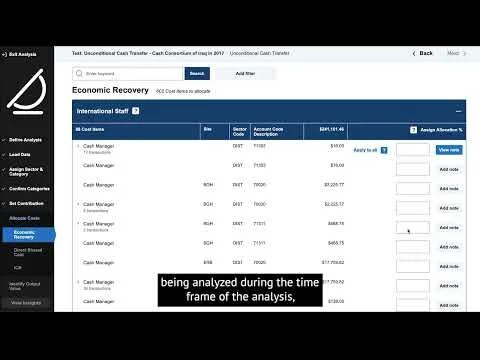
In this step, Dioptra asks you to Allocate Costs, i.e. specify what percentage of a cost item charged to the project was used for the activity or intervention being analyzed. While allocating costs, it’s important to remember that the goal is not to apply perfect percentages, but to use your own knowledge of the program to estimate percentages for cost items as accurately as possible. Since it is not possible to easily observe how much individual shared cost items contribute to the activity being analyzed, Dioptra also helps to calculate a suggested percentage that can be easily applied to shared costs.

This step only applies to interventions that involve the distribution of monetary assets to clients (e.g. cash transfers, vouchers, cash for work, cash grants etc). In the Identify Output Value step, Dioptra allows you to identify the total value of cash transferred to clients by finding and selecting the cost items that correspond to the cash transferred.
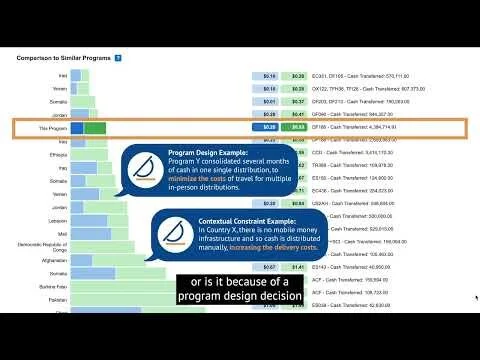
In this final step Dioptra shows you the cost-efficiency results of our analysis and how it compares with other similar programs. Dioptra also displays a top cost categories chart that shows the most significant spending areas for your activity. If ‘value for money’ evidence for the activity exists, Dioptra will show some of the factors or ‘efficiency drivers’ that most significantly affect the cost-efficiency of this activity, and suggest ideas or potential strategies on how to improve cost-efficiency.